Before you begin
- A Jobber admin login (any Jobber plan) or a Housecall Pro admin on the Max plan
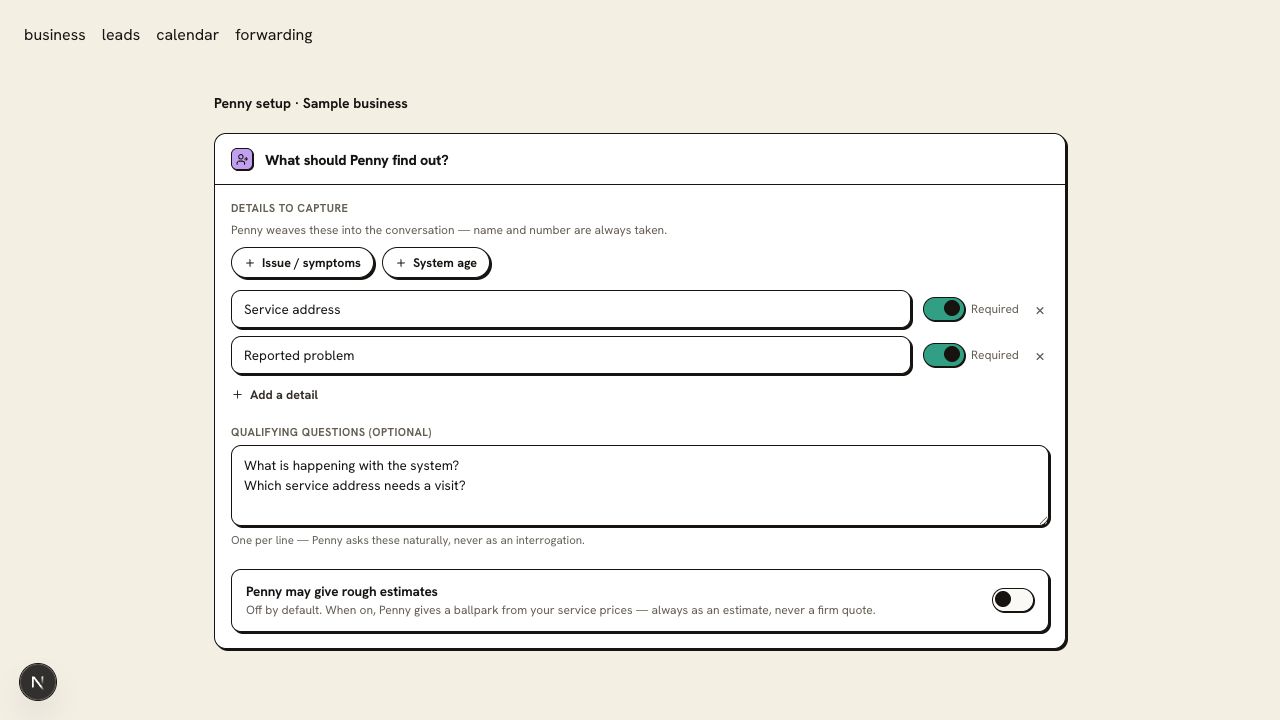
- Your intake questions, including the callback number and service address
Step 1
Choose your software
Open Settings, then Integrations. Under field-service software, choose Jobber or Housecall Pro. Penny sends to one of them at a time.
Step 2
Connect it
Jobber: choose Connect Jobber, sign in as a Jobber admin, and allow access to clients and requests.
Housecall Pro: an admin creates an API key with Full access under My Apps → All Apps → API Key Management (Max plan). Paste it in Penny and choose Connect. Turn on API Leads under My Apps → Job inbox to see Penny’s leads in their own channel.
Step 3
Check what each tool receives
Jobber gets a Request for the client found by phone number. Housecall Pro gets a lead for the customer found by mobile number, then email. Each carries the caller’s details, what they asked for, Penny’s summary, and a link back to the conversation in Penny. Neither schedules a visit.
Step 4
Make a test call
Call your Penny number with a marked test request. When the call ends, find the record in your software, then open the conversation in Penny’s Inbox: it shows where the record went. Try Penny chats in the dashboard are marked Test and are not sent.
You are ready when
The test record lands in the right account, for the right customer, with the details your office needs to schedule.
If the test does not pass
- If the record went to a new customer instead of one you have, check that the phone number in your software matches the number the caller gave. Penny matches on phone number, then email, never on a name.
- If Settings shows the connection stopped working, reconnect it there. Jobber: connect again. Housecall Pro: paste a new key.
- A booking on your calendar and the record in your field-service software are separate. When Penny books a time, the record lists it so your office can add the visit.
Questions about this setup
Does either of these create a scheduled job?
No. Jobber gets a Request and Housecall Pro a lead, for your office to review. Your team schedules the work the usual way.
When does the record appear?
Right after the call or chat ends, usually within a few minutes. If your software is down, Penny tries again for several hours and shows the result on the conversation in your Inbox.
I have more than one location. Where do the records go?
Every record names the Penny location the caller or visitor reached. It goes to the one Jobber or Housecall Pro account you connected, where your office routes it like any other request.
What should the office check on the first call?
Open the destination record and confirm the company account, customer match, address, reported problem, and status. Name who reviews the intake so the request has a next step.