The fields your office receives
| Source field | Destination |
|---|---|
| Caller name, phone, and email | The client found by phone number, or a new client |
| Service address, when given | The property of a new client, and the Request details |
| What the caller needs | Request title |
| Captured answers, preferred times, Penny’s summary, and a link to the conversation | Request details |
| The location the caller reached, when you have more than one | Request title and details |
- Direction
- Penny searches your Jobber clients by phone number, then writes a Request for the match or a new client. She doesn’t read anything else from Jobber.
- When it happens
- Penny creates the Request right after the call or chat ends, usually within a few minutes.
A Jobber Request is intake. Your office still decides on a quote, job, and scheduled visit. Penny tells the caller that the team will follow up to schedule; she does not promise a technician’s arrival from this record. When Penny books a time on your calendar, the Request lists it so your office can add the visit in Jobber.
Set up the connection
- 1
Connect Jobber
In Penny, open Settings → Integrations and choose Connect Jobber. Sign in to Jobber as an admin user and allow access to clients and requests.
- 2
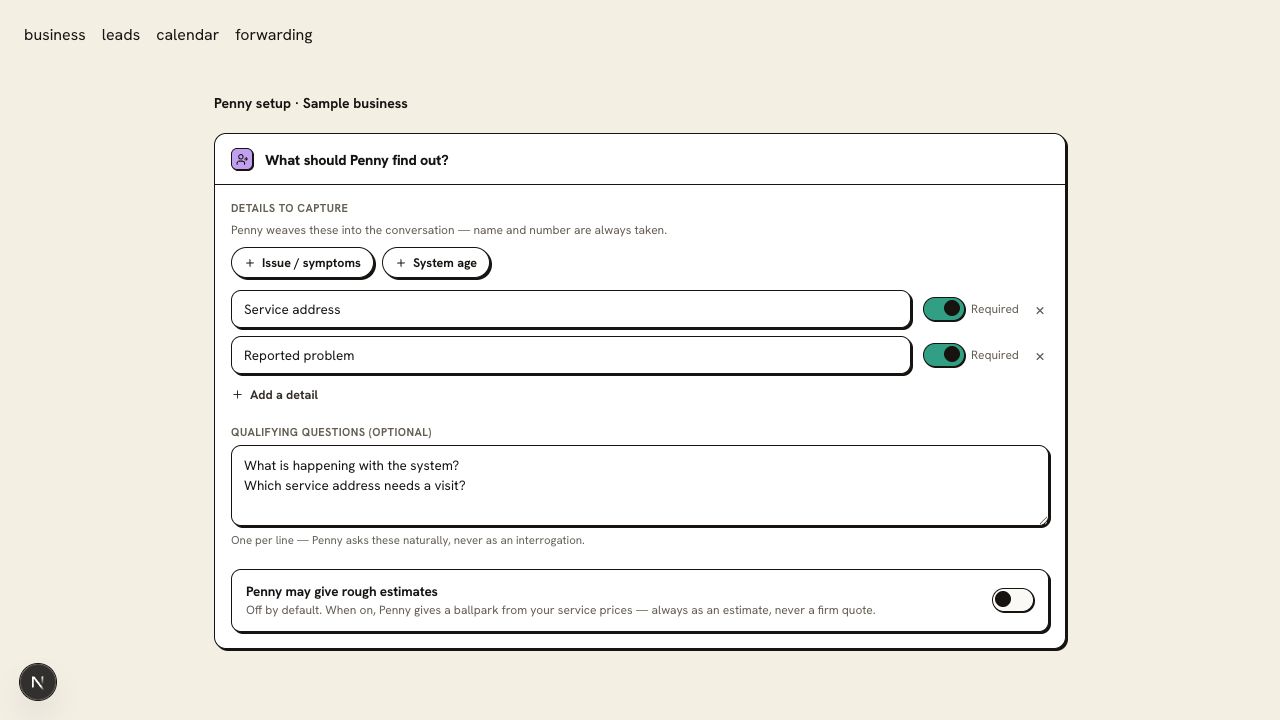
Choose the intake questions
Require the name, callback number, and service details your office needs. Ask for the service address so a new client arrives with a property.
- 3
Make a test call
Call your Penny number with a clearly marked test request. When the call ends, find the Request under the client in Jobber. In Penny, that conversation shows Sent to Jobber.
- 4
Assign the office’s follow-up
Decide who reviews Requests and contacts callers about scheduling. Use your normal Jobber workflow to turn the intake into the next step.
Jobber Request
- Client
- Sample Caller
- Request
- Kitchen faucet keeps dripping
- Details
- Preferred time weekday mornings, Penny’s summary, and a link to the call
- Office action
- Review the inquiry and contact the caller about scheduling
Check the first result
Find the test Request under the right client, with the details and the link back to Penny. Listen to Penny’s closing line: it should describe a captured request with office follow-up, without claiming a scheduled visit.
Questions about this connection
Does this create a scheduled Jobber visit?
It creates a Request for your office to review. Your team handles the quote, job, and scheduled visit in its normal Jobber workflow.
Does Penny look up my clients during the call?
No. Penny doesn’t read Jobber while she talks with a caller. After the conversation she matches the client by phone number, so a repeat caller’s Request lands on the client you already have.
Which Jobber plan do I need?
Any Jobber plan. Connecting needs a Jobber admin user.
How do I know the connection is ready?
Find the test Request under the right client, with the details and the link back to Penny. Listen to Penny’s closing line: it should describe a captured request with office follow-up, without claiming a scheduled visit.